Closed
Remote mode
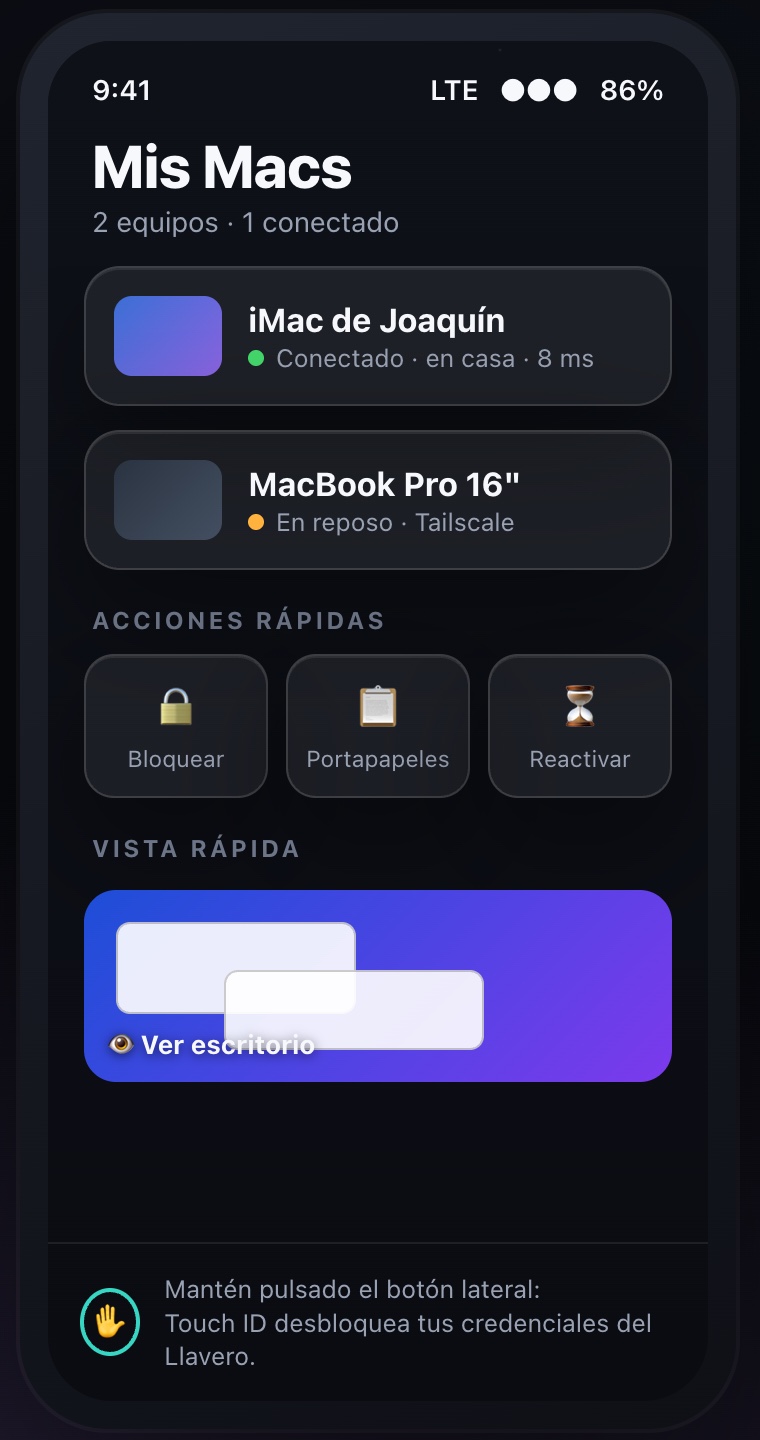
With the Duo closed, the cover screen is a remote: pick a Mac, check its status or wake it — without unfolding.
Veensee is the fastest, sharpest way to control your Mac from iPhone, iPad and the foldable iPhone Duo. Pixel-perfect picture, native Screen Sharing, nothing to install on your Mac.
Free to try · One-time unlock · No subscriptions
Closed or open, Veensee adapts to how you hold your Duo — with split view and USB-C monitor support on the way.
With the Duo closed, the cover screen is a remote: pick a Mac, check its status or wake it — without unfolding.
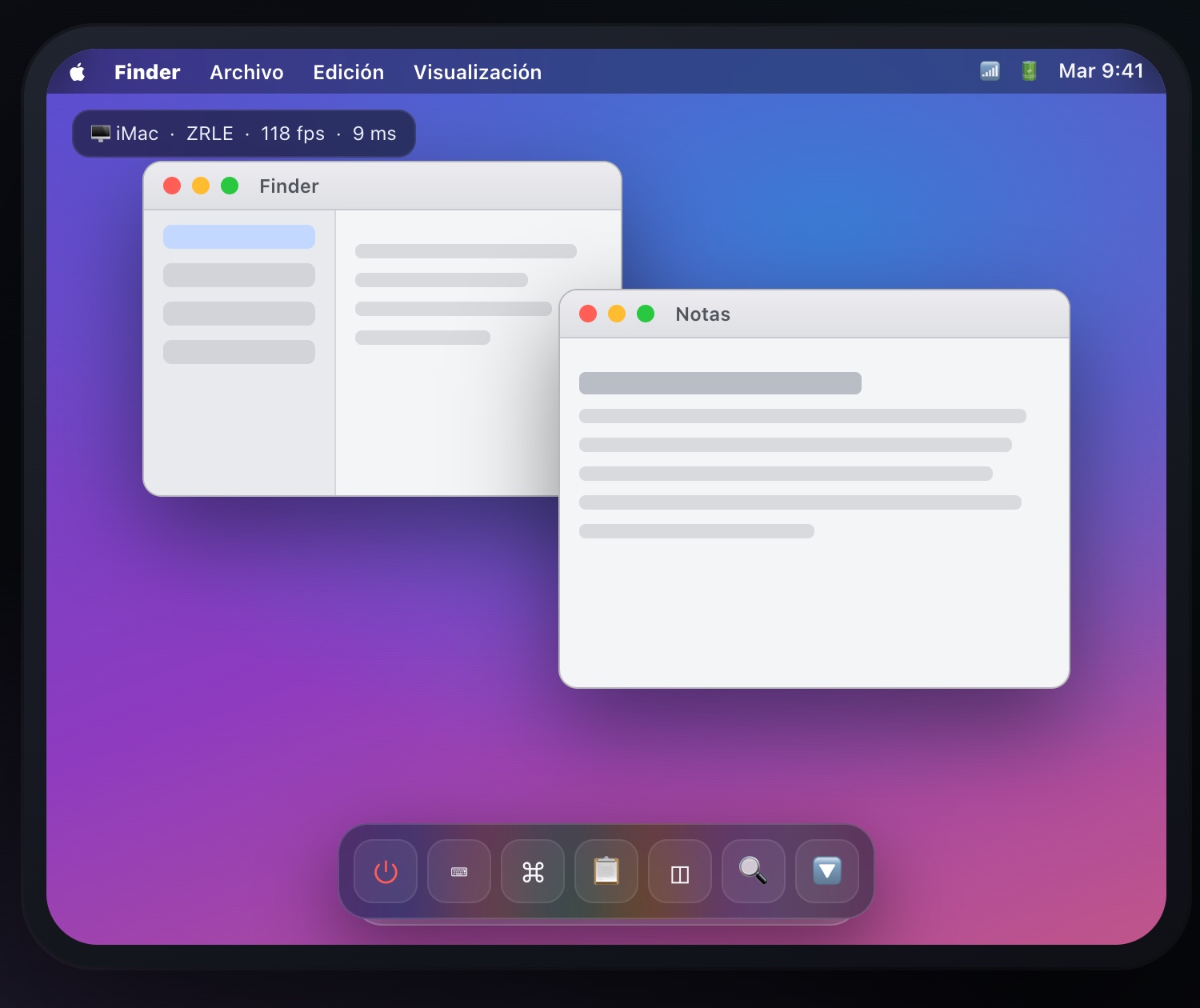
Unfold and your Mac fills the inner screen: smooth pinch-zoom, panning and a floating glass toolbar that hides when you don't need it.
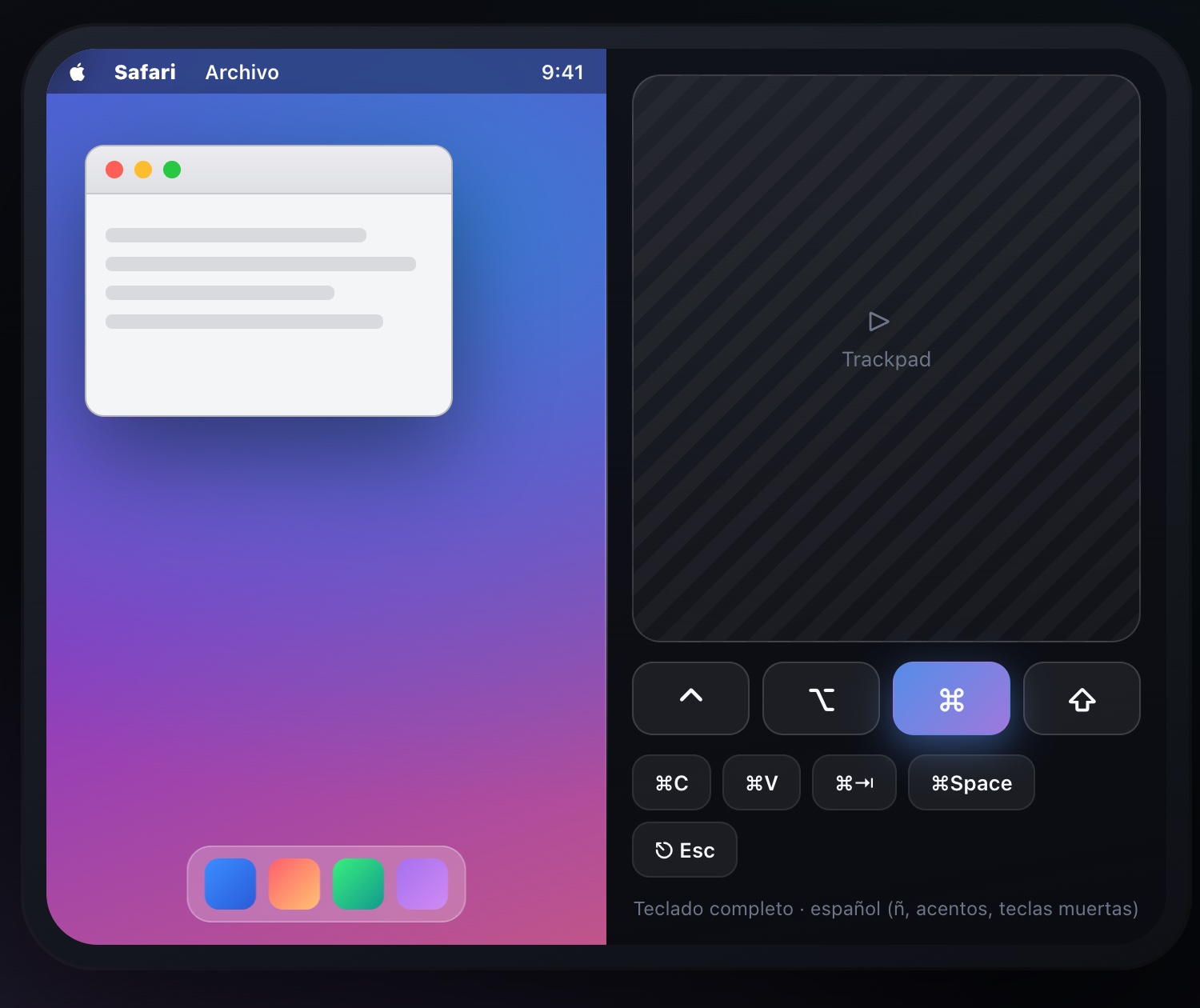
Coming soon: one half shows your Mac, the other becomes a big trackpad with ⌘ ⌥ ⌃ ⇧ keys and custom shortcuts.
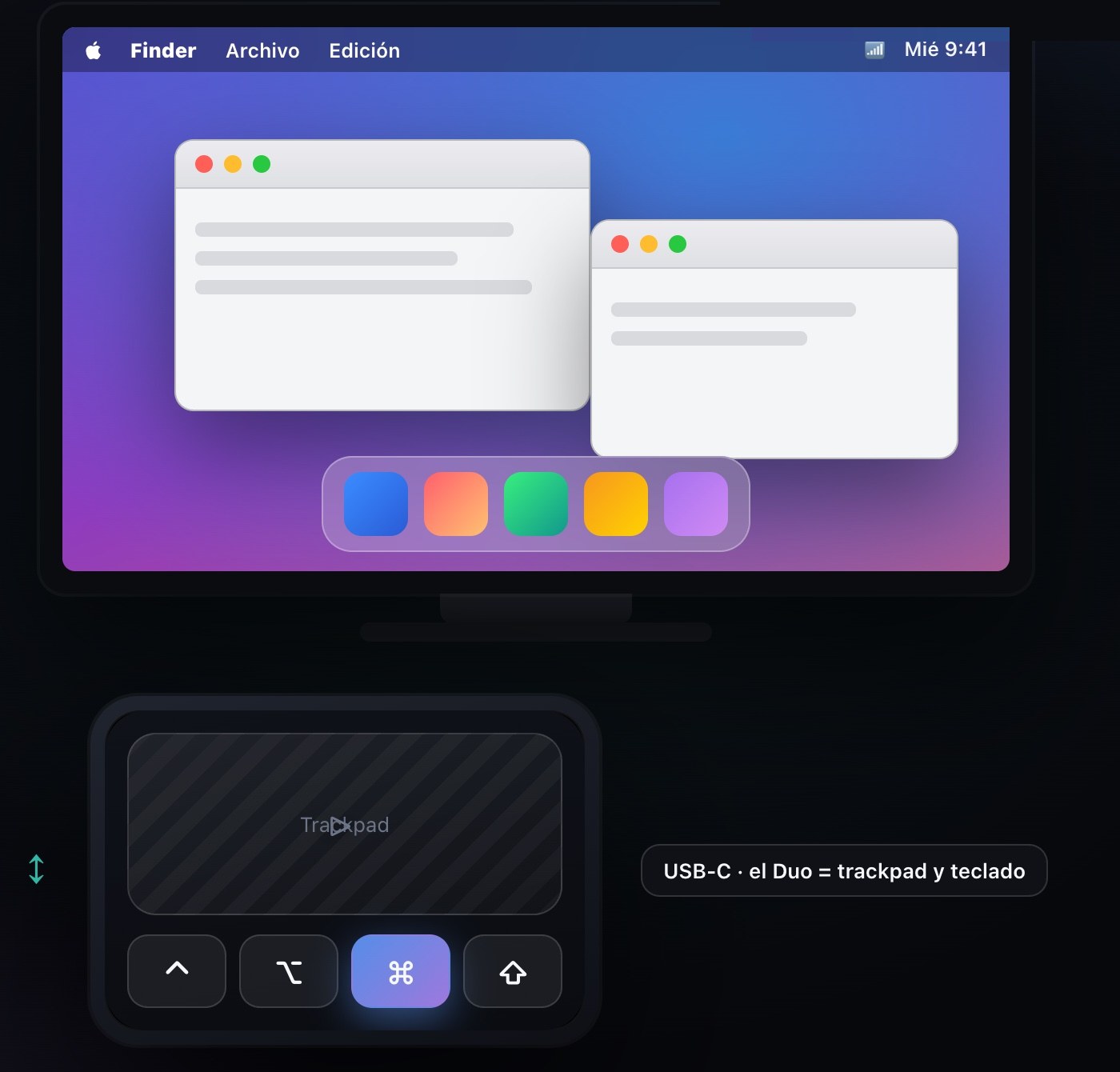
Coming soon: plug the Duo into a monitor over USB-C and the display shows your Mac full-size while the Duo becomes the trackpad and keyboard.
No server to set up, no software to install on your Mac.
On your Mac open System Settings → General → Sharing and switch on Screen Sharing. Once, and you're done.
Add your Mac in Veensee with its name or address and save your login securely in the Keychain. At home or away, over your own private network.
Pinch to zoom, tap to click, drag, and type with the full keyboard. Your Mac, sharp and responsive, from anywhere.
Lossless image quality and only the regions that change are redrawn with Metal. Crisp text, fluid motion, low latency.
Veensee uses macOS's built-in Screen Sharing. Turn it on once in System Settings and you're done.
Reach your Mac from anywhere over ZeroTier or Tailscale. No open ports, no third-party servers in the middle.
Your Mac logins are stored securely in the iOS Keychain, protected by your device lock. Connect with one tap.
A remote on the cover screen, your full Mac on the inner screen — a remote desktop built around both screens of the iPhone Duo.
Connect Claude or any MCP-compatible AI to Veensee and let it see and operate your Mac for you — with you in control.
Veensee is built so there's nobody in the middle.
No agent or helper on your Mac. Only macOS's own Screen Sharing — less software, less attack surface.
The connection runs over your private network (ZeroTier or Tailscale). No ports opened on your router.
Passwords are stored in the iOS Keychain, protected by your device lock. Never on our side.
We run no relay between your device and your Mac, so we can't see your screen, your keystrokes or your files.
With MCP, the open standard for connecting AI to tools, an assistant like Claude will be able to see your Mac's screen and operate it through Veensee — open apps, fill forms, run the chores you'd rather not.
Price shown is indicative and may vary by region.
No. Veensee connects through the Screen Sharing feature already built into macOS. Just switch it on in System Settings → General → Sharing.
Yes. Put your Mac and your device on the same private network with ZeroTier or Tailscale and Veensee connects from anywhere — coffee shop, airport or cellular — without opening any ports on your router.
Your connection goes through your own private network, not our servers. Credentials are stored in the iOS Keychain, protected by your device lock. We don't see your screen or your data.
The Model Context Protocol is an open standard that lets AI assistants use tools. With Veensee's upcoming MCP support, an AI like Claude will be able to look at your Mac's screen and operate it — open apps, fill in forms, run routine tasks — while you stay in control.
Yes. Try it free, then unlock once. No subscription, no recurring fees.